
Olden Era Overlay: How to Install and Use the Free OldenEra Companion
By OldenEra.gg Staff · Updated
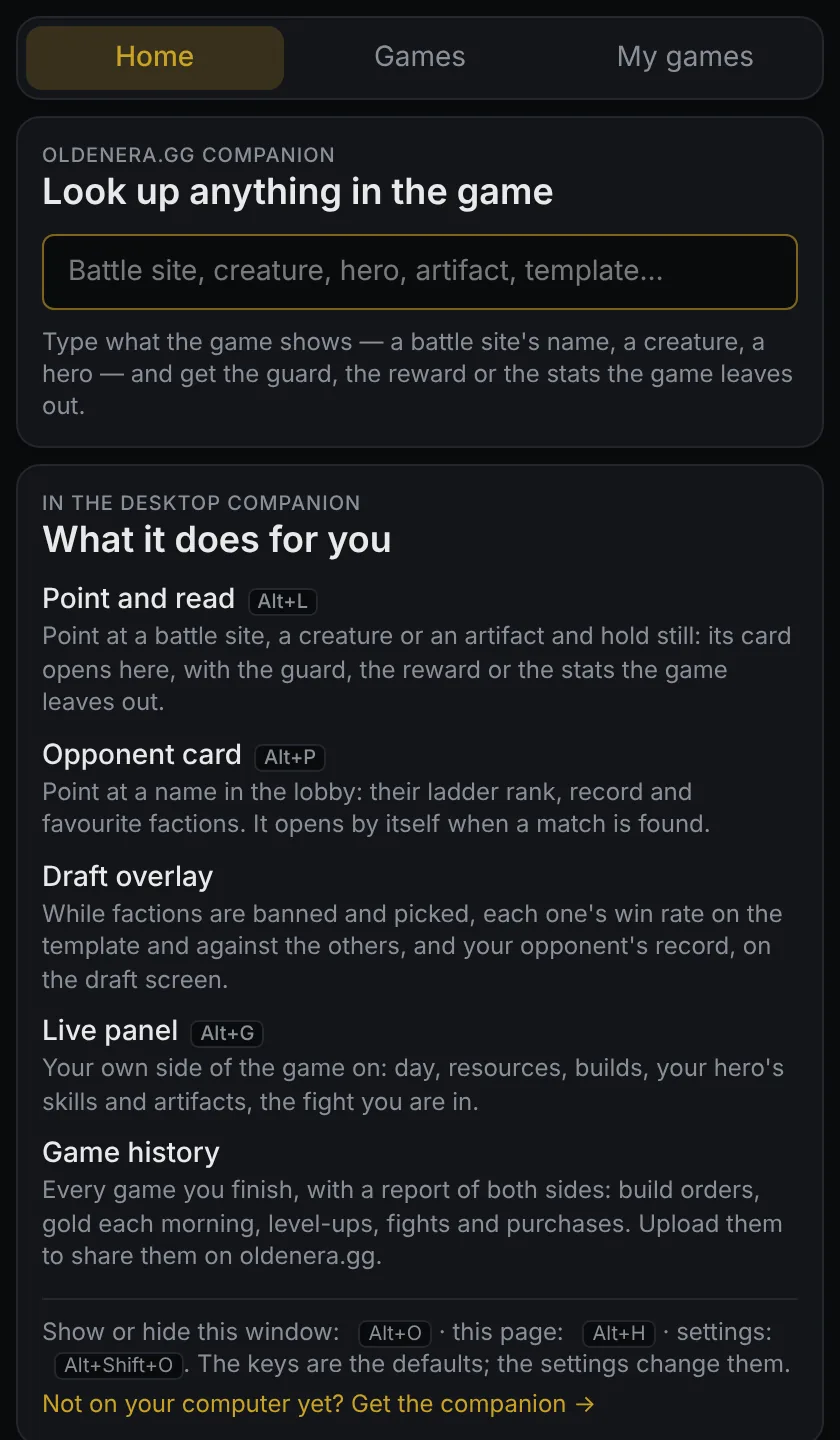
The OldenEra Companion is a free overlay for Heroes of Might & Magic: Olden Era that shows what the game leaves out. Point at a battle site and a card opens with the exact guard stacks and the reward for every roll; point at a creature and you get its stats and abilities; find a ranked match and your opponent's ladder record is waiting before the draft starts. This guide takes you from the download to your first card, then through the hotkeys, the settings worth changing and the fixes for the usual problems.
It is written for version 0.4.3, the build on the download page as of 21 October 2026.
What the OldenEra Companion does
The companion is a small window that stays on top of the game. It reads the name of whatever you point at, looks it up on OldenEra.gg and shows the answer as a card:
- Battle sites: every roll the site can have, with its chance, the guard's stacks and power, and the reward. More in Olden Era battle sites: guards and rewards.
- Creatures, artifacts and heroes: stats, abilities and starting armies, without leaving the game.
- Your opponent: rank, rating, record and favourite factions from the ranked ladder and, during the draft, each faction's win rate on your template. More in the draft overlay guide.
- Your own games: a live panel while you play and, after each game, a report of both sides. More in match history and game reports.
The cards come from the site, so they are current the day a patch ships and the app never needs an update for new game data. Not sure you need any of this? Seven ways to use the companion walks through the moments where it helps most.
Download and install
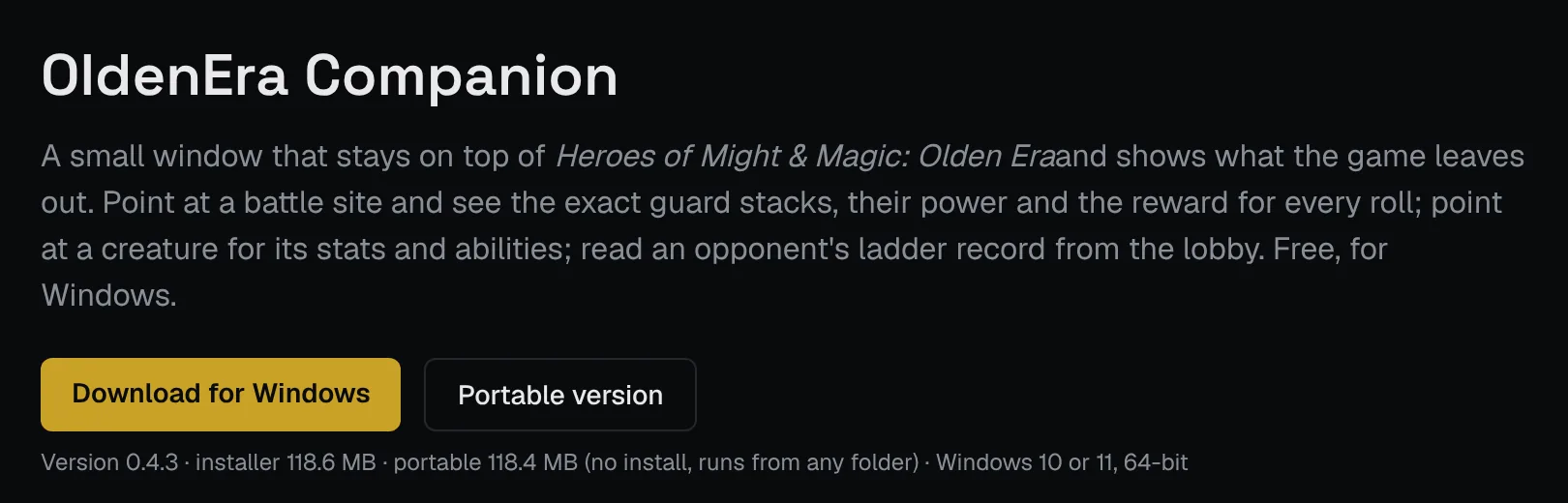
- Open oldenera.gg/companion and click Download for Windows for the installer, or Portable version for a single program that runs from any folder without installing. Each is about 120 MB.
- Run it. The app is not code-signed yet, so Windows SmartScreen warns you the first time: click More info, then Run anyway.
- The companion opens on its search page and puts an icon in the system tray. Right-click the icon for its menu: most of the commands below are there too.
Set the game to borderless or windowed mode. The companion is a window drawn on top of the game, and exclusive fullscreen hides every window that is not the game's own, this one included.
Your first card in a minute
- Start the companion, then the game. The search page steps aside as soon as the game starts; cards still open over it.
- Load any game. A game against the AI is fine for trying it out.
- Point at a battle site, a creature or an artifact on the adventure map and hold the mouse still. When the game's tooltip appears, the companion reads its title and opens the card. The very first read takes a few seconds longer while the text-recognition data downloads, once.
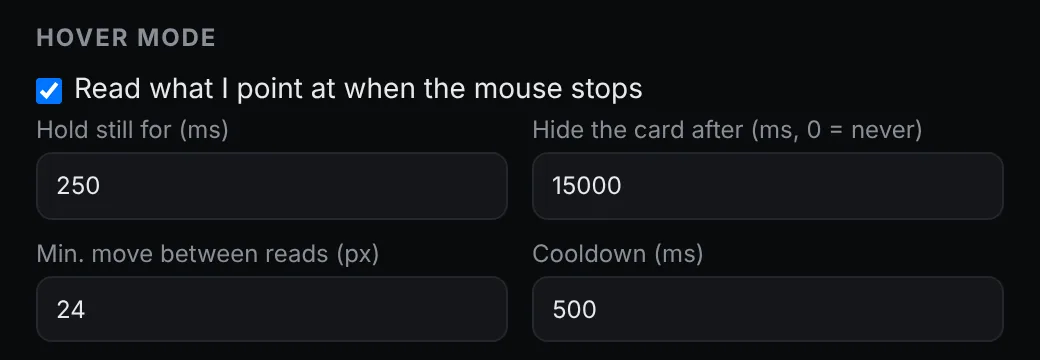
- The card hides by itself after 15 seconds. Alt+O shows or hides it at any time. You can drag the card window anywhere and resize it, and it remembers where you put it.
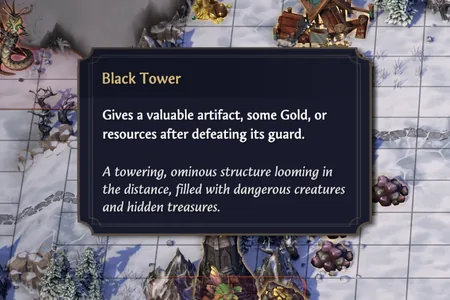
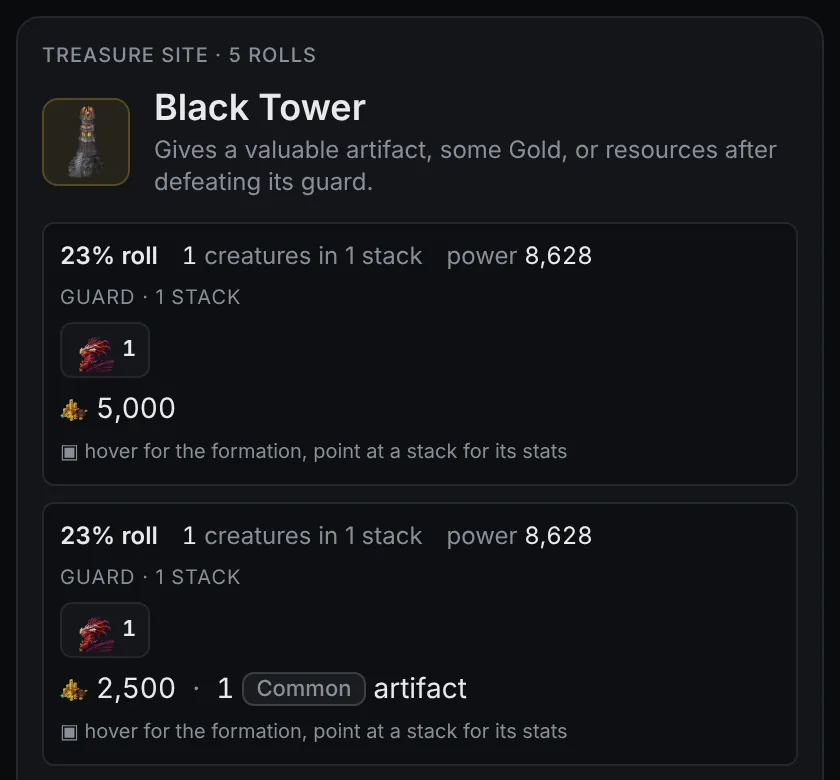
This is hover mode, and it is on by default. The companion takes a screenshot around the cursor, finds the game's tooltip by its colours and reads only its title line, on your computer. Where there is no tooltip, it reads the band just above the pointer, where the game's dialogs put their titles. Only the recognised text goes to OldenEra.gg, exactly as if you had typed it into the search box. Pointing at something it cannot read shows nothing at all, rather than a guess.
The hotkeys
| Key | What it does |
|---|---|
| Hover | Point at an object and hold still. If the companion reads a name it knows, the card opens. |
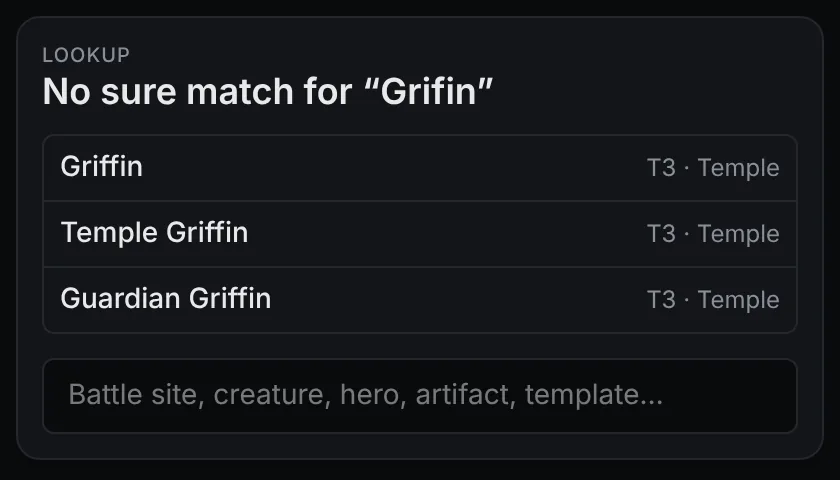
| Alt+L | Read the dialog above the cursor now. A near miss opens a short list to pick from. |
| Alt+P | Read the player name under the cursor (lobby, loading screen) and open their ladder card. |
| Alt+O | Show or hide the card window. |
| Alt+H | Back to the search page, to type anything. |
| Alt+G | Show or hide the live panel, your side of the game on (needs the game's log, below). |
| Alt+Shift+O | Open the settings. |
If another program already uses one of these keys, change it in the settings: any combination works, such as Ctrl+Shift+K or F8. The tray menu has the main commands as well, plus a Hover mode switch, Game history… and Open oldenera.gg.
Tune the capture band with Test read
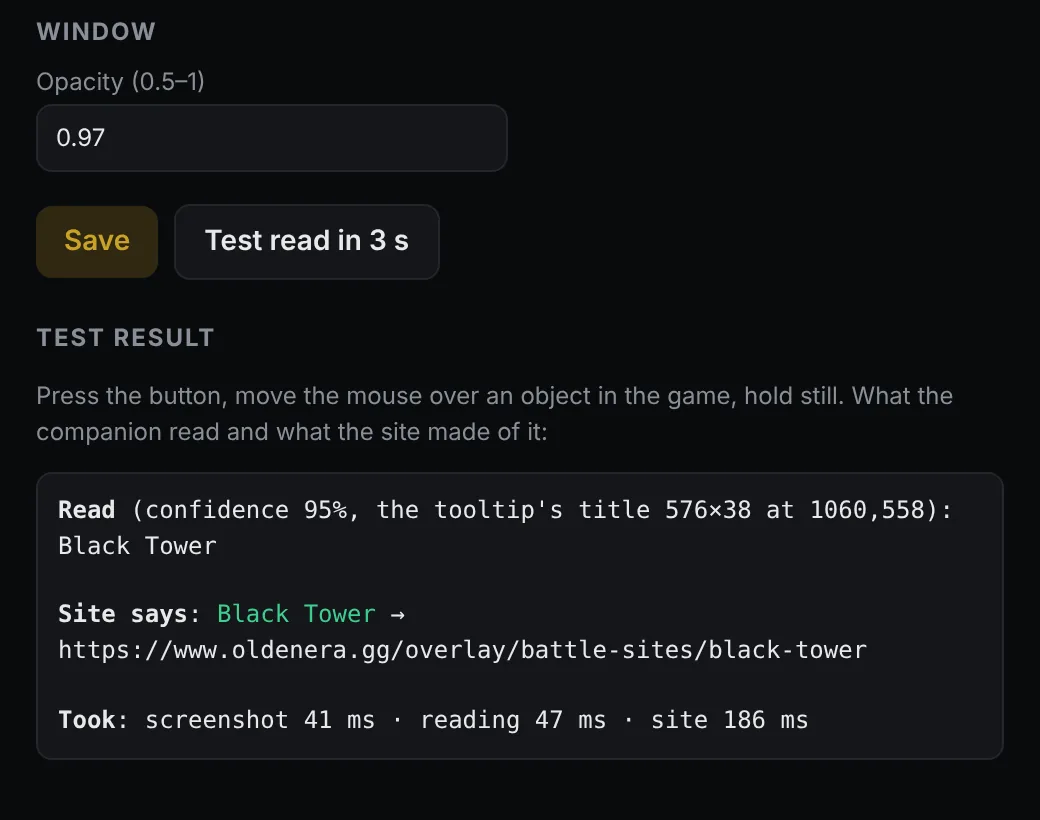
If you point at something and nothing opens, the band the companion reads is probably missing the dialog's title. Open the settings (Alt+Shift+O), press Test read in 3 s, move the mouse over an object in the game and hold still. The result says what was read and where, how sure the reading was, which card the site chose for it and how long each step took.
The settings that matter most for reading:
- Band width, height and distance above the cursor. The defaults (960 × 440 pixels, reaching 448 pixels above the pointer) suit 1080p. At 1440p, 4K or a large interface scale, make the band wider and taller first. It has to take in the dialog's title: a read of the description alone shows nothing rather than a wrong card.
- OCR language. English, or English plus Russian, Polish or German if you play with names in one of those languages.
- Hover timing. How long to hold still before a read, how long a card stays up (0 keeps it up), and how far the mouse has to move before the next read.
- Opacity. From 0.5 to 1, if you want to see the game through the card.
Two switches worth turning on
Out of the box, the companion only reads the screen. Everything else is opt-in, in the same settings window:
- Read the game's log. Olden Era writes a log of every launch to
%USERPROFILE%\AppData\LocalLow\Unfrozen\HeroesOldenEra\Logs\General\, and the settings find it for you. With it on, your opponent's card opens when a match is found, the draft overlay puts faction win rates on the draft screen, a battle site's card opens when your hero walks into it, Alt+G shows the live panel, and every online game you finish is kept with a full report. The draft guide and the match history guide show what you get. - After a game, read its autosaves too. Adds both sides' laws, and each hero's army and stats morning by morning, to the report: things the log never says.
Uploading your games to OldenEra.gg is a separate switch, Upload finished games to oldenera.gg. It stays off until you turn it on, and the first time it shows exactly what would be sent before anything is.
Is the OldenEra Companion safe to use?
The companion works like a screenshot tool with a text reader attached. It never reads or writes the game's memory and never touches its network traffic, so it cannot change anything in your game. The only files it opens are the game's log and, once a game is over, that game's autosaves, and only after you switch those on.
Little leaves your computer: the text it recognised, as if you had typed it; the game's own ids when it asks for a card from the log; and an opponent's in-game name when it looks up their ladder record. Your game records leave your computer only if you turn on uploading. While a game is on, the companion shows only your own side and what the draft screen shows. The log holds your opponent's side too, and none of it is shown until the game is over. The privacy policy lists what the site keeps.
Troubleshooting
Nothing appears when I point at something
Check that the game runs in borderless or windowed mode, that Hover mode is ticked in the tray menu, and that you hold the mouse still until the game's tooltip is up. Then run Test read: if it reads the description or nothing at all, make the band taller or move it until the title sits inside it.
The wrong card opens, or no name fits
Press Alt+L on the same dialog to get a list of the closest names. If you play with Russian, Polish or German names, set the OCR language to match.
The card covers part of the screen I need
Drag the card window somewhere else, make it smaller, lower its opacity, or hide it with Alt+O. It also hides by itself after 15 seconds, or after any time you set.
A hotkey does nothing
Another program may own that key. Pick a different one in the settings.
The first card took several seconds
That is the one-time download of the text-recognition data. Reads after it are quick.
Can I use it on a Mac, on Linux or on my phone?
The desktop companion is Windows only. On any other device, open the web companion in a browser: it shows the same cards, looked up by typing a name, and works well on a phone or a second screen beside the game.